



An End of Month (EOM) term is a type of payment term that sets the due date of a transaction to the last day of the month in which the payment is due—regardless of the invoice date.
Examples of End of Month Terms
|
Term |
Description |
Invoice Date |
Due Date |
|
EOM |
Payment is due on the last day of the same month |
10-Apr-2025 |
30-Apr-2025 |
|
EOM + 1 Month / Net 30 EOM |
Payment is due on the last day of the following month |
10-Apr-2025 |
31-May-2025 |
|
15th of Next Month / Net 15 |
Payment due on the 15th of the following month |
10-Apr-2025 |
15-May-2025 |
|
15th of Second Month / Net 45 |
Payment due on the 15th of the second month after invoice date |
10-Apr-2025 |
15-Jun-2025 |

In NetSuite
Out of the box, NetSuite includes standard terms like Net 30, Net 60, etc. But true EOM logic (especially EOM + 1 or EOM + fixed day like 15th) often requires:
- A custom payment term, and
- A workflow or script to calculate and set the correct due date.
This blog post focuses on how to achieve EOM-style terms using Workflows only—no scripting needed!

Why Use Workflows?
Using workflows to set due dates based on these terms means you can:
- Automate due date logic without SuiteScript
- Maintain consistent rules across transactions
- Easily maintain or update formulas
Step-by-Step: Setting EOM Terms in NetSuite Workflows

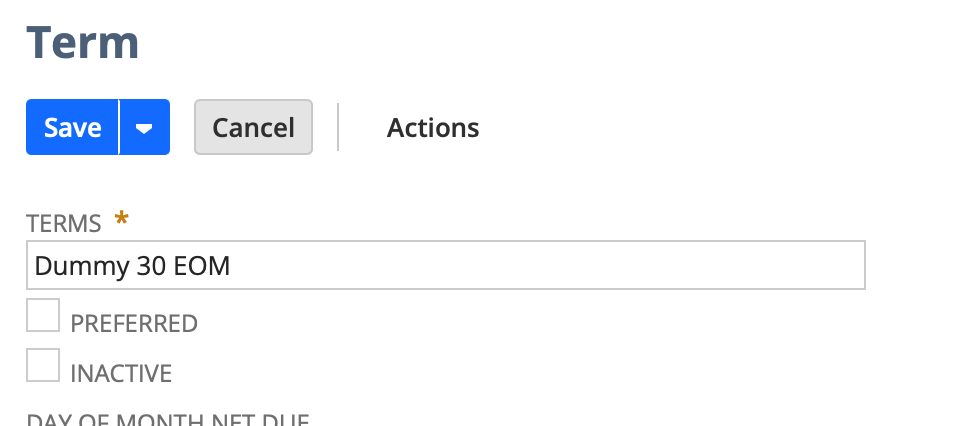
Step 1: Create a Dummy Payment Term
1. Go to Setup > Accounting > Accounting Lists > New
2. Select Payment Term
3. Create a name like "EOM + 1 Month" or "Net 45 EOM"
4. Save
Step 2: Build the Workflow
1. Go to Customization > Workflow > Workflows > New
2. Configure:
- Name: Custom Due Date: EOM Terms
- Record Type: Transaction
- Sub-Type: Invoice
- Initiation: Event Based
- Trigger Type: Before Record Submit or After Record Submit
- Event Type: Create and Edit
Step 3: Add a State and Action
1. Create a state in the workflow diagram
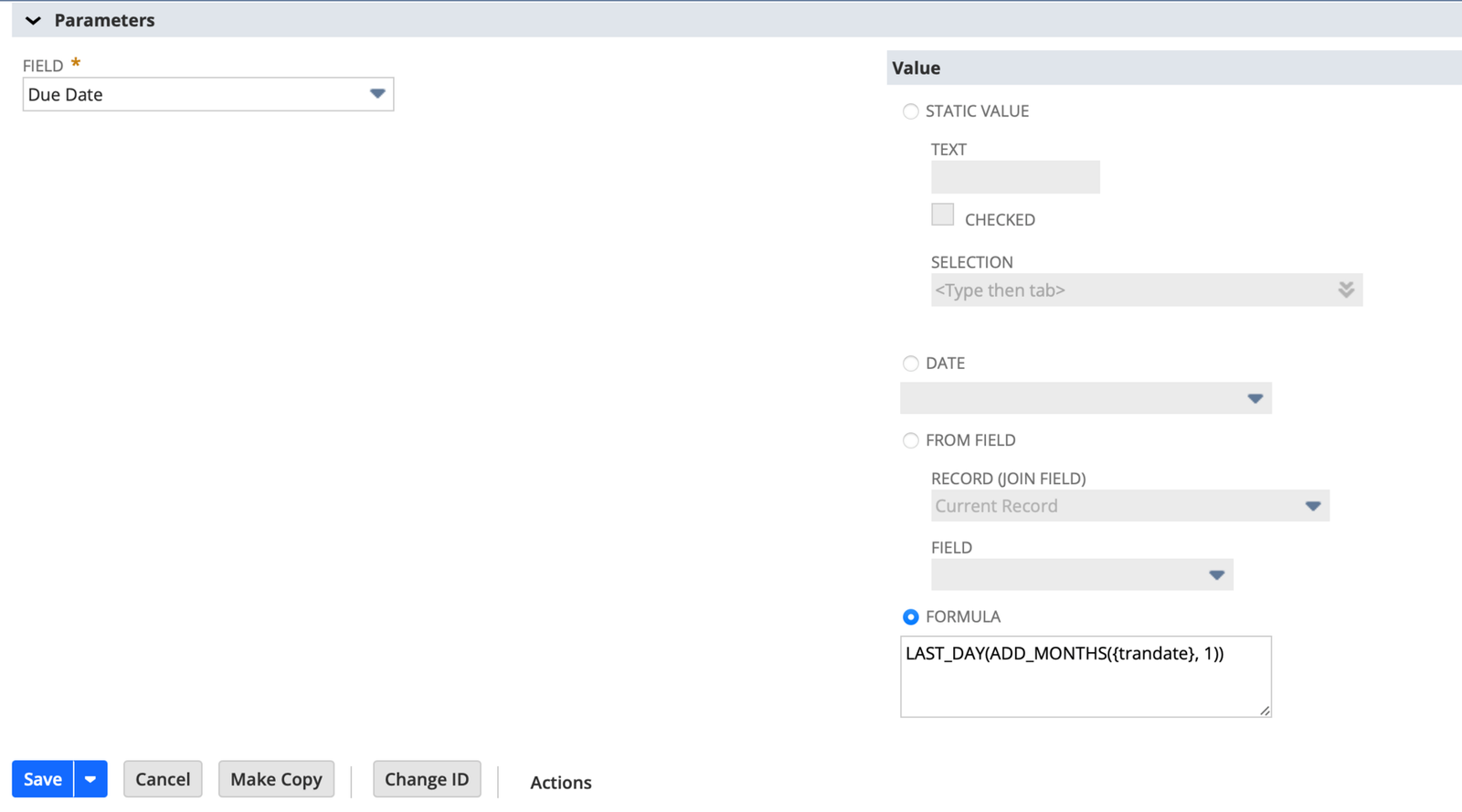
2. Add a Set Field Value action:
- Field to Set: Due Date
- Value Type: Formula
For EOM + 1 Month:
LAST_DAY(ADD_MONTHS({trandate}, 1))
For Net 45 EOM (15th of 2nd Month):
TO_DATE(TO_CHAR(ADD_MONTHS(LAST_DAY({trandate}), 1), 'YYYY-MM') || '-15', 'YYYY-MM-DD')
Step 4: Add a Condition
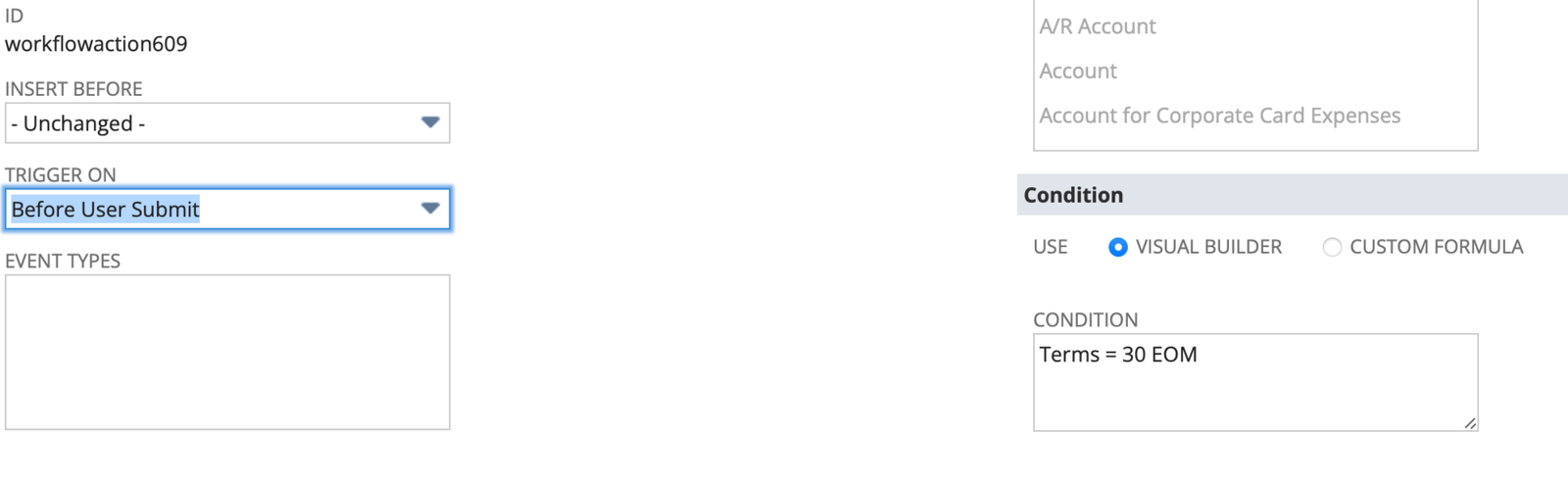
Use a formula condition so the workflow only sets the due date if the dummy payment term is selected:
{terms} = 'EOM + 1 Month'
(Replace with the exact name of your dummy payment term)
Example
|
Invoice Date |
Term |
Due Date |
|
10-Apr-2025 |
EOM + 1 Month |
31-May-2025 |
|
05-Mar-2025 |
Net 45 EOM |
15-May-2025 |

Benefits of This Approach
- No code required
- Easily maintainable by admins
- Highly adaptable to different business rules

Pro Tips
- Add logging via workflow actions if you're testing new formulas
- Use different states for each custom term if you're managing multiple in one workflow
- Don’t forget to set the workflow to Released and Applies To relevant forms
Final Thoughts
If your business requires EOM-style terms but you want to avoid SuiteScript complexity, workflows are a clean, scalable solution. With just a few formula tweaks and smart conditions, NetSuite can calculate your due dates automatically.
Need help with more complex logic or multi-condition workflows? Feel free to reach out or connect on LinkedIn!
Share this post: